Web browser
chatgpt.com
Go to chatgpt.com and log in with the SSO option. When logged in, look for "The University of Mar…" in the bottom-left corner.
How to verify your UMD account, recognize ChatGPT and Codex usage limit notifications, and keep your Codex settings efficient to avoid burning unnecessary credits.
Confirm you are logged in with your UMD account in each tool you use.
Go to chatgpt.com and log in with the SSO option. When logged in, look for "The University of Mar…" in the bottom-left corner.
Click the gear icon in the top right of the Codex panel. Look for "The University of Maryland" listed under your account name.
Click the settings gear in the bottom left. A list appears — your account name should be at the top, with "The University of Maryland" underneath it.
Familiarize yourself with these messages so you can quickly identify when a limit has been hit, what it means, and what to do next.
When a usage limit is reached, ChatGPT displays a banner near the bottom of the interface showing when advanced features will become available again. Affected models appear grayed out and cannot be selected until the limit resets.
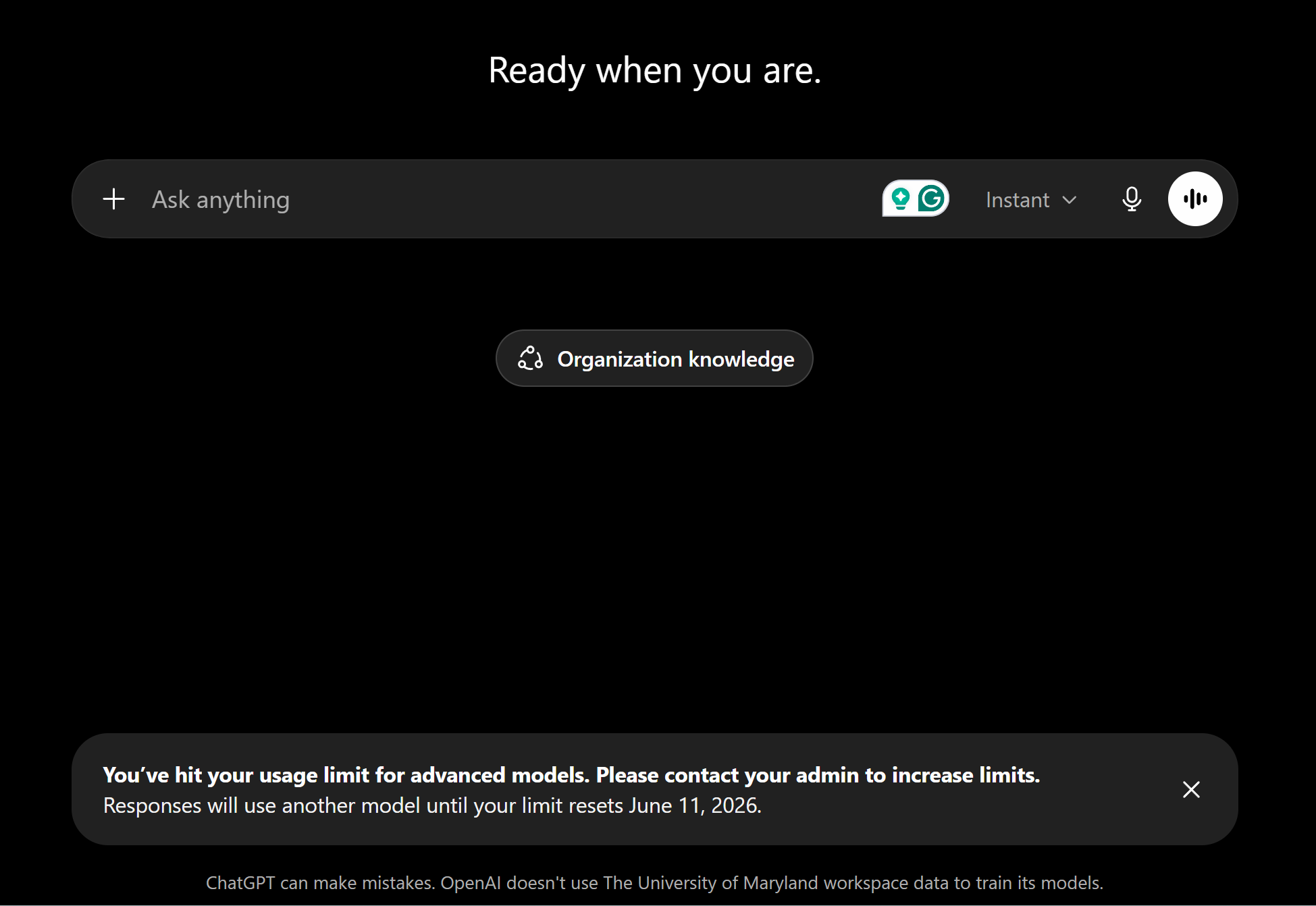
Bottom banner — limit reached, fallback model in use
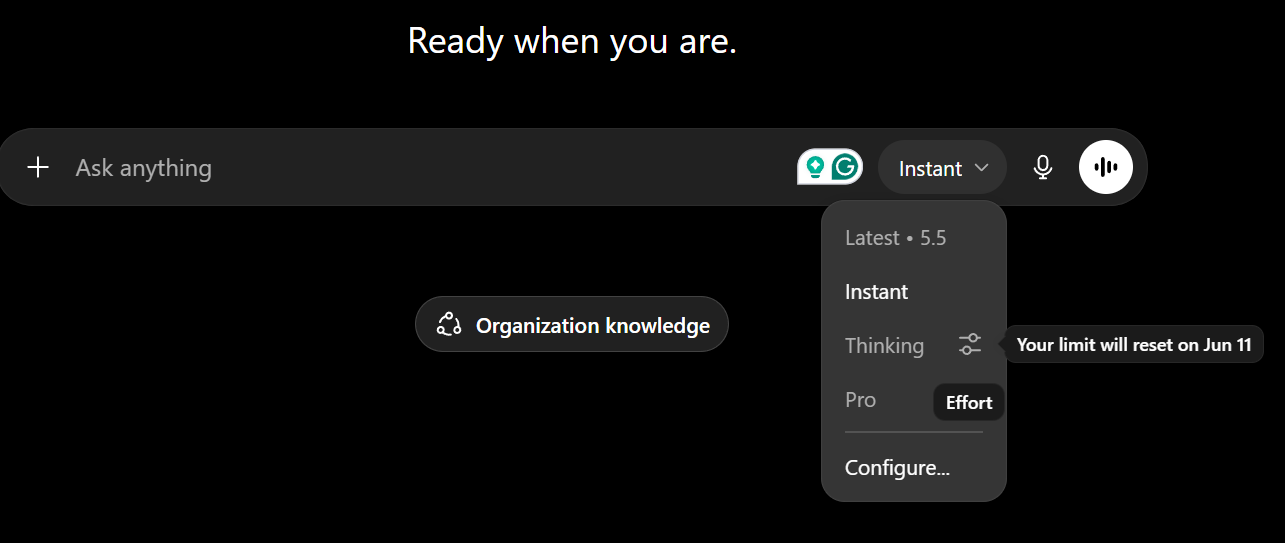
Model dropdown — advanced options grayed out with reset date
When you reach your image generation quota, ChatGPT shows a notification that image creation is temporarily unavailable and gives the reset date and time. The banner may also indicate that advanced models or image-generation features are restricted until the limit period expires.
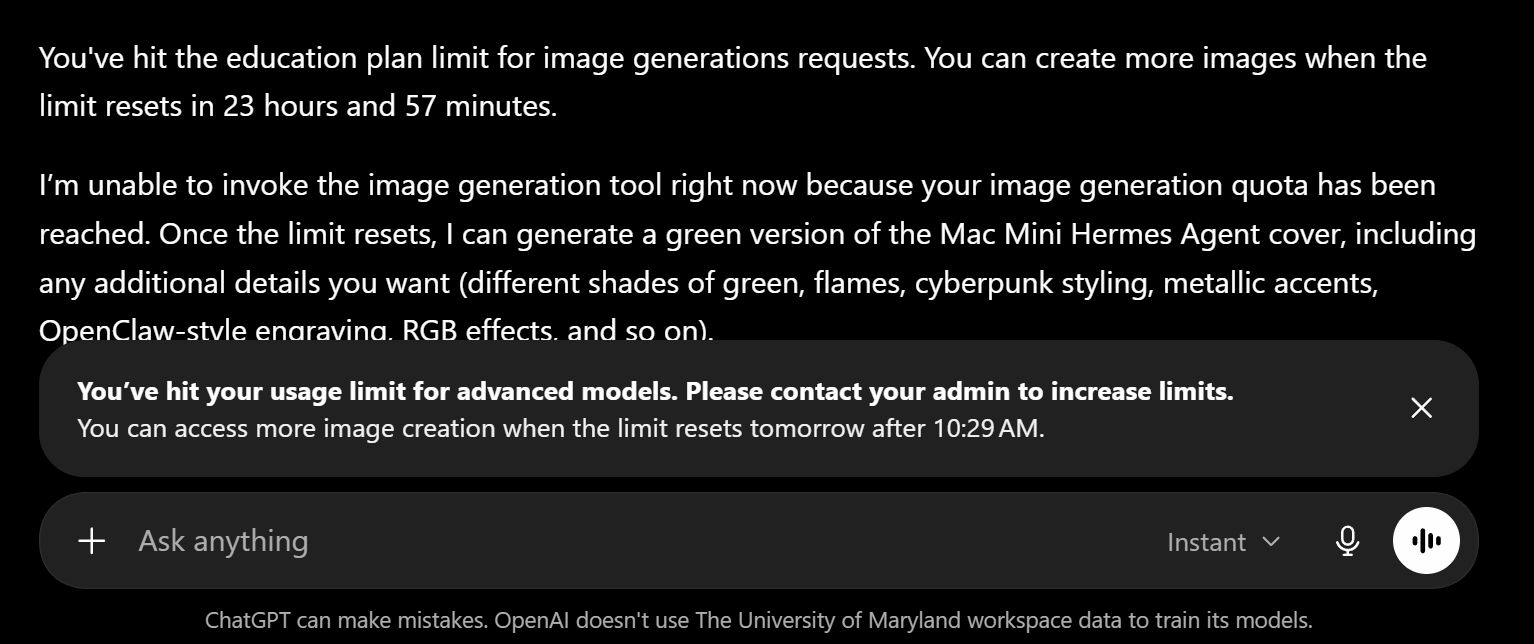
Image generation quota exhausted — limit resets tomorrow at 10:29 AM
When the Deep Research quota is exhausted, ChatGPT displays a rate limit notification and blocks new Deep Research requests until the limit resets. Each Deep Research task shows a countdown before it autostarts — as shown below, the number (e.g. 52) is a timer in seconds before the task automatically begins.

Deep Research countdown before autostart — 52 is the number of seconds until the task begins automatically
You can review your ChatGPT usage directly from the signed-in ChatGPT interface.
 at the bottom-left of the screen.
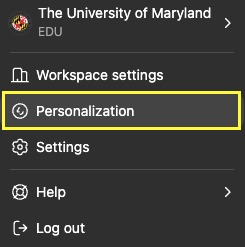
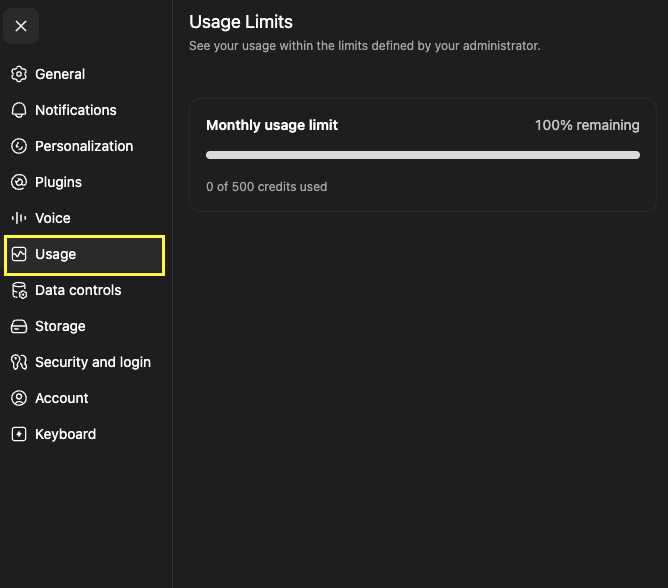
Usage Limits screen — select Usage and review your monthly usage limit
When your Codex message quota is exhausted, the VS Code extension displays a notification indicating no additional requests can be submitted. You can click View Usage to see where you are in your metering period.
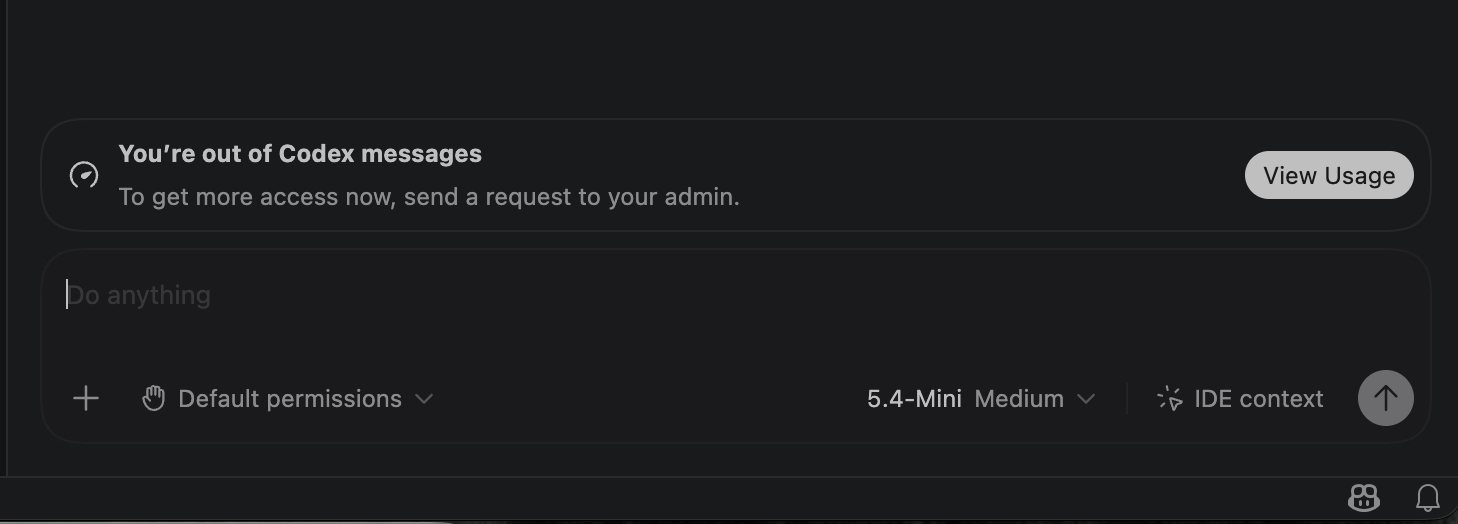
VS Code Codex panel — quota exhausted, request more access from your admin
/status in VS Code. This shows where you are on your 5-hour and 7-day usage metering. You can also track consumption on the web at chatgpt.com/codex/cloud/settings/analytics.@umd.edu account in the plugin. If not, you are on the free, unsecured tier.By default, Codex may automatically switch to a thinking model. Disable this so you can make deliberate choices about when higher thinking levels are actually warranted.
Look for the Auto-switch to Thinking toggle in the model settings panel and turn it off.
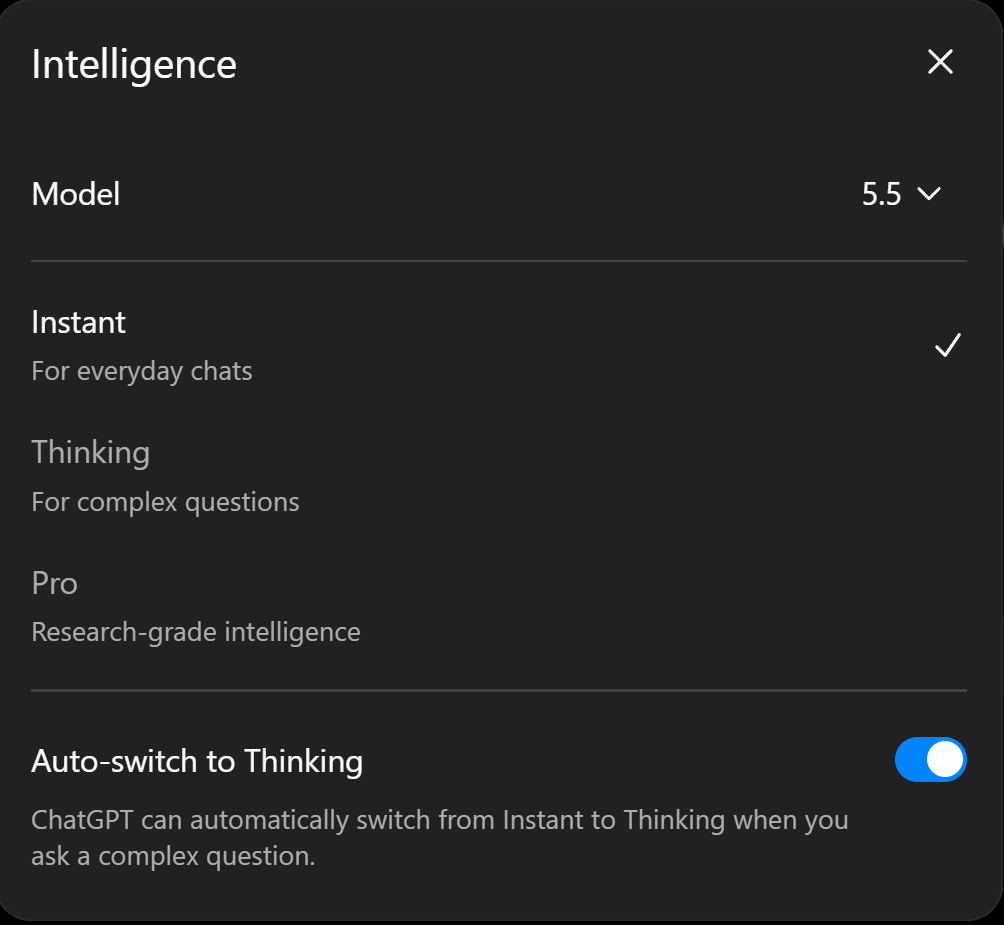
Intelligence panel — Auto-switch to Thinking is on by default
Codex usage can be checked from the web analytics page or from inside the VS Code extension.
/status.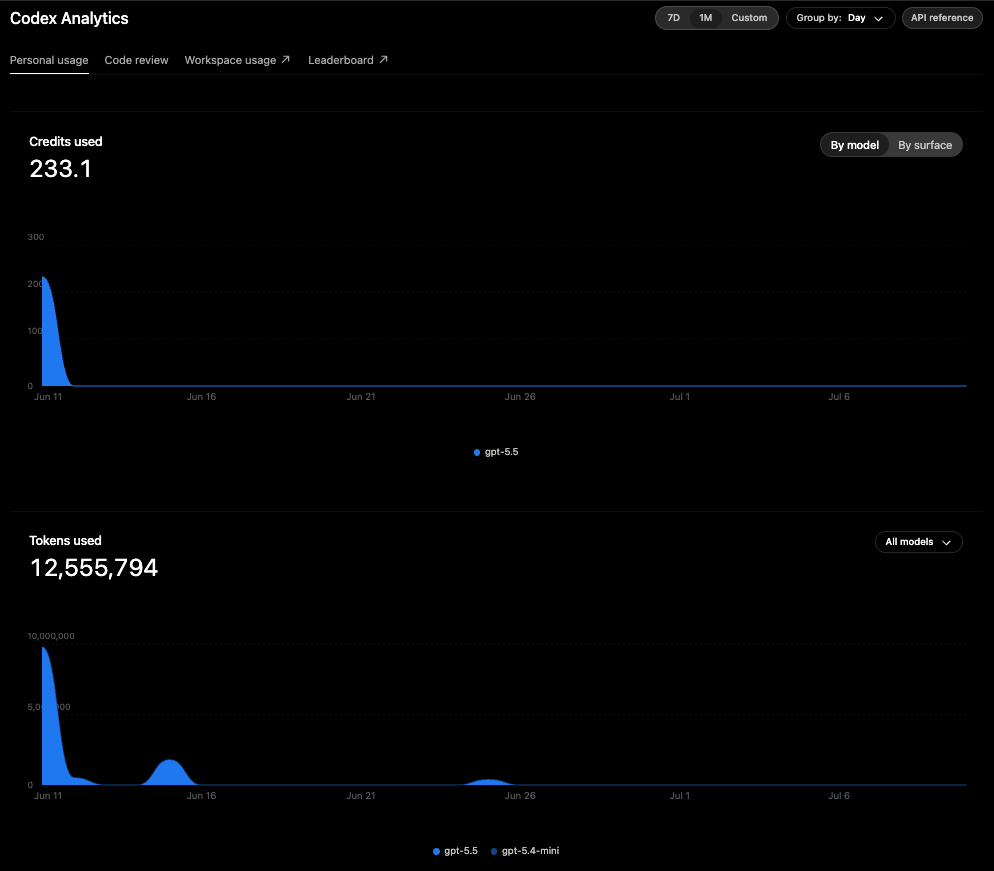
Codex Analytics dashboard — review credits used, tokens used, filters, and model grouping

Division of Information Technology
University of Maryland